
If you are unable to WhatsApp Web scan QR code, the issue is usually caused by a dirty phone camera lens, low screen brightness on your computer, or a poor internet connection. To fix this instantly, wipe your camera lens, increase your monitor’s brightness to 100%, and ensure both your phone and computer are connected to the same stable Wi-Fi network. If the code still fails, refresh the page to generate a new QR code, as they expire quickly for security reasons.
Quick Answer: What Is the WhatsApp Web QR Code & How to Connect Instantly
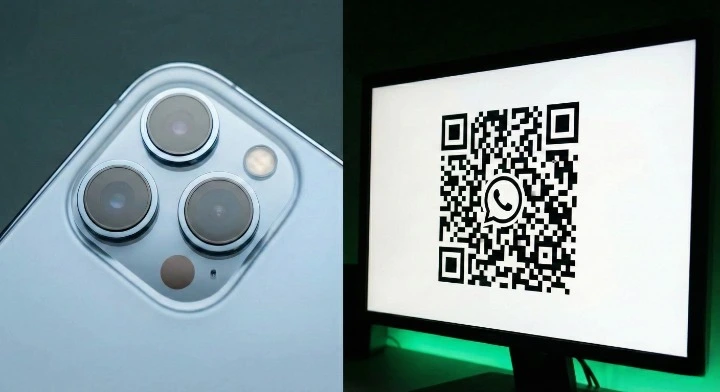
The WhatsApp Web QR code is a unique, dynamic graphical image that acts as a secure digital key. It bridges the gap between your mobile device and your computer browser. When you scan this code, you are not just taking a picture. You are authorizing a secure “handshake” that mirrors your mobile chat data to the desktop interface.
The Role of the WhatsApp Web Scan QR Code Token in End-to-End Encryption
Every time you load WhatsApp Web, the site generates a specific QR token. This token contains encrypted information. When you use your phone to perform the whatsapp web scan qr code, it verifies your identity without sending your password over the internet. This process maintains end-to-end encryption. It ensures that your messages remain private and can only be read by you and the recipient, even when using a web browser.
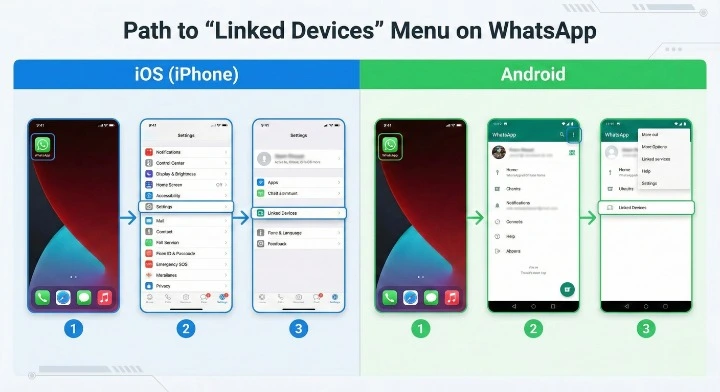
Instant Connection Steps for iOS and Android
Connecting is fast if you follow the correct path for your device.
For Android Users:
- Open WhatsApp and tap the three dots (Menu) in the top right corner.
- Select Linked devices.
- Tap the big green button that says Link a device.
- Point your phone at the screen.
For iOS (iPhone) Users:
- Open WhatsApp and go to Settings in the bottom right.
- Tap on Linked Devices.
- Tap Link a Device.
- Unlock your phone with FaceID or TouchID and scan the code.
How to Scan WhatsApp Web QR Code: A Visual Walkthrough
Scanning seems simple, but small mistakes can block the connection. You need to know exactly where to look and how to hold your device.
Locating the WhatsApp Web Scan QR Code in Settings
Many users get confused because the scanner for the WhatsApp Web scan QR code is not on the main chat screen. You must navigate to the Linked Devices menu. Do not use your standard camera app or a third-party QR scanner app. You must use the scanner built specifically inside the WhatsApp application.
Proper Phone Alignment and Distance
The physical position of your phone matters.
- Distance: Hold your phone about 1 foot (30 cm) away from the computer screen.
- Angle: Keep the phone parallel to the screen. Do not tilt it up or down.
- Movement: Hold your hand steady. If you are moving too much, the camera cannot focus on the complex black and white patterns of the code.
Troubleshooting: Fix WhatsApp Web Scan QR Code Not Scanning or Loading
If you have tried the basic steps and it still won’t work, you are likely facing a technical conflict. Here are the most effective fixes for common scanning failures.
Visual Conflicts: Dark Mode, Screen Brightness, and Zoom Levels
Your phone camera needs high contrast to read the code.
- Brightness: Turn your computer screen brightness up to the maximum level.
- Dark Mode: If you use a Dark Mode extension on your browser, turn it off. It can invert the colors of the QR code, making it unreadable to the scanner.
- Zoom: Ensure your browser is set to 100% zoom. If the code is too small or pixelated from being zoomed in, the scanner will fail. Press
Ctrl+ 0 (Windows) orCmd+ 0 (Mac) to reset zoom.
Browser Settings: Disabling Hardware Acceleration in Chrome & Edge
Sometimes, the way your browser uses your computer’s graphics card can glitch the WhatsApp Web scan QR code display. This is called Hardware Acceleration.
To fix this in Google Chrome:
- Go to Settings.
- Click on System.
- Turn off “Use graphics acceleration when available“.
- Restart Chrome and try again.
Cache Management: Clearing Specific WhatsApp Cookies Without Losing Data
Old data stuck in your browser can cause the whatsapp web scan QR code to freeze. You do not need to clear all your history. Focus only on WhatsApp.
- Go to your browser settings.
- Search for “Cookies”.
- Find “See all site data and permissions”.
- Search for “web.whatsapp.com”.
- Click the trash icon next to it.
- Reload the WhatsApp Web page.
Network Barriers: VPNs, Firewalls, and Restricted Public Wi-Fi
If you are at work or school, the network might block WhatsApp.
- VPNs: If you are using a VPN, turn it off. WhatsApp often blocks IP addresses associated with VPNs to prevent spam.
- Public Wi-Fi: Some public networks restrict messaging apps to save bandwidth. Try switching to your phone’s mobile hotspot to see if the QR code loads.
Expert Analysis: Why Your WhatsApp Web Login Fails
Understanding why the failure happens can help you prevent it in the future. The system is designed to fail safely rather than connect insecurely.
The Timeout Mechanism: Refreshing the Dynamic Code
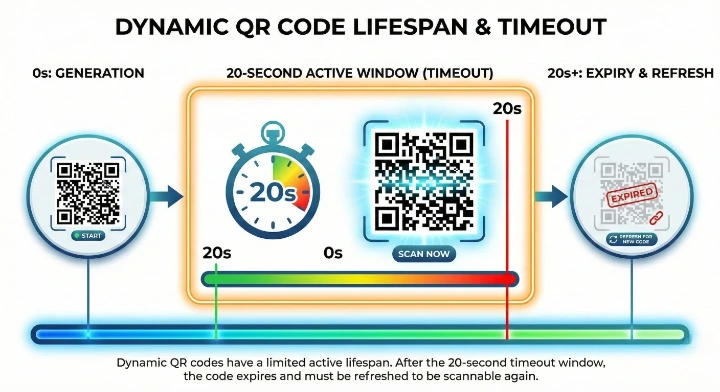
The WhatsApp Web scan QR code you see on the screen is dynamic. It changes every 20 seconds. If you open the page and then get distracted for a minute, the code on the screen will be expired. The scanner will not react to an expired code. Always click the green ‘Click to reload QR code’ circle if the code looks greyed out.
Hardware vs. Software Conflicts Breakdown
Sometimes the problem is your gear.
- Hardware Issues: A scratched camera lens or a broken autofocus motor on your phone will prevent scanning.
- Software Issues: An outdated version of the WhatsApp app on your phone causes compatibility errors. Go to your App Store or Play Store and update WhatsApp immediately.
Comparison Table: Common Error Messages and Instant Fixes
Use this table to quickly identify your specific whatsapp web scan QR code problem and find the solution.
| Error Symptom | Likely Cause | Instant Fix |
| Code is blurry | Internet speed or Zoom settings | Reset zoom to 100% (Ctrl+0) and wait for the image to sharpen. |
| Scanner does nothing | Expired Code or Dirty Lens | Click to reload the code and wipe your phone camera lens. |
| “Computer not connected” | Network Firewall | Disconnect VPN or try a mobile hotspot. |
| Code keeps spinning | Browser Cache | Clear cookies specifically for web.whatsapp.com |
| Purple/Inverted Code | Dark Mode Extension | Disable Dark Reader or similar browser extensions. |
Best Practices for WhatsApp Web QR Code Security
Connecting your phone to a browser opens a window into your personal life. You must secure this connection to protect your data.
Recognizing Session Hijacking and Phishing Attempts
Scammers create fake websites that look like WhatsApp Web. They want you to scan their QR code so they can hijack your account.
- Check the URL: Only scan codes on web.whatsapp.com.
- Never share codes: Never send a screenshot of a QR code to anyone.
- Log out remotely: Regularly check your “Linked Devices” on your phone. If you see a computer you don’t recognize (like “Linux” or a location you haven’t been to), tap it and select Log Out.
Enhancing Privacy: Using the Waplify Privacy Extension
If you use WhatsApp Web in an office or coffee shop, people walking by can see your messages. To solve this, you can use tools like the Privacy Extension for WhatsApp Web. This tool automatically blurs your messages and contact names until you hover over them. This adds a necessary layer of visual security for business users and privacy-conscious individuals.
Data Safety: Understanding How Session Tokens are Handled
When you perform the WhatsApp web scan qr code process, a session token is stored in your browser. This is why you don’t have to scan the code every single time. It is vital to understand how these tools interact with your information. Always review the privacy policies of any extension you install. For instance, the Waplify Privacy Policy: Data Collection, Use & Security outlines exactly how user data is protected, ensuring that your chat content remains strictly between you and your recipient.
Beyond the WhatsApp Web Scan QR Code: Stability for Business Users
For casual users, a failed WhatsApp Web scan QR code attempt is an annoyance. For businesses, it means lost revenue.

WhatsApp Business App vs API: Avoiding Connection Dropouts
If you rely on WhatsApp for customer support, the standard connection requiring a whatsapp web scan qr code might be too unstable. It relies on your phone staying on and connected. If your phone battery dies, your web connection dies.
Businesses should consider moving beyond the app. The WhatsApp Business API offers a stable, cloud-based connection that does not rely on a phone or a QR code scan. For a detailed breakdown of the differences, you can read about the WhatsApp Business App vs API: Feature Comparison to see which solution fits your volume of messages best.
Key Takeaways: The Ultimate Troubleshooting Checklist
- Clean and Bright: Wipe your lens and maximize screen brightness.
- Network Check: Ensure both devices are on the same Wi-Fi. Remove VPNs.
- Zoom Check: Reset browser zoom to 100%.
- Update: Update the WhatsApp app on your phone.
- Security: Only scan codes on the official website and check linked devices often.
Frequently Asked Questions About WhatsApp Web Scan QR Code Issues
Q: WhatsApp Web Scan QR Code: Can I Do It Without the Back Camera?
A: No. WhatsApp requires the rear camera for higher resolution scanning. If your rear camera is broken, you cannot link a new device this way.
Q: Why do I have to scan the code every day?
A: This happens if your browser is set to clear cookies automatically when you close it. Change your browser settings to “Keep local data” to stay logged in.
Q: Can I log in without a QR code?
A: Currently, WhatsApp is rolling out a ‘Link with Phone Number’ feature, but it is not available to everyone yet. The WhatsApp Web scan QR code remains the primary method.
Q: Does the QR code work on an iPad?
A: Yes. Open Safari on your iPad, go to web.whatsapp.com, and scan the code using your phone just like you would on a computer.