
What is Web WhatsApp Business and How to Log In: A Step-by-Step Desktop Guide
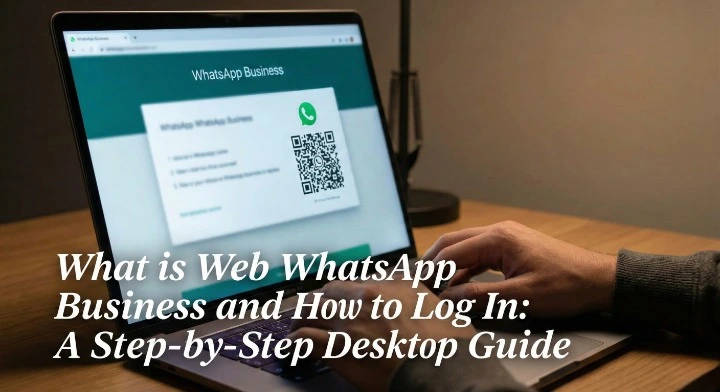
Web WhatsApp Business is a browser-based tool that lets you access your WhatsApp Business account directly from a computer. It mirrors the conversations from your mobile app to your desktop screen. This allows you to type faster using a full keyboard, share files easily, and manage customer chats without constantly picking up your phone.
Running a business from a smartphone can be tiring. The screen is small, and typing long replies takes time. By moving your workflow to a desktop, you can respond to more customers in less time. This guide explains exactly how to set up Web WhatsApp Business and why it is a game changer for your daily tasks.
What is Web WhatsApp Business?
Before diving into the setup, it is important to understand exactly how this tool functions and how it differs from the standard mobile application.
The Browser-Based Extension for Web WhatsApp Business Explained
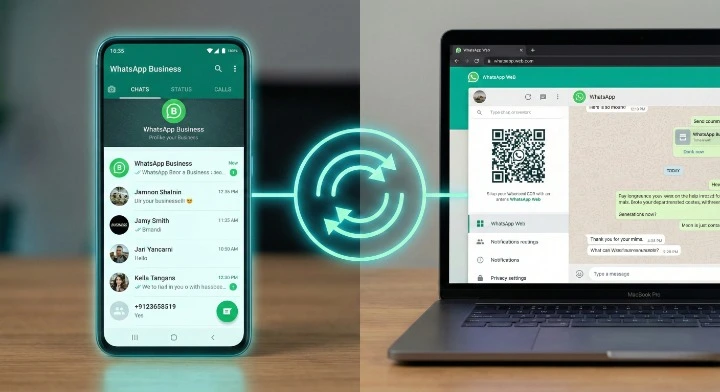
Web WhatsApp Business is not a separate account. It is an extension of the account active on your mobile phone. Think of it as a remote control for your WhatsApp. Whatever you do on the web browser instantly happens on your phone, and vice versa. It works on major browsers like Chrome, Firefox, and Edge.
Core Difference Between Personal and Business Web Versions
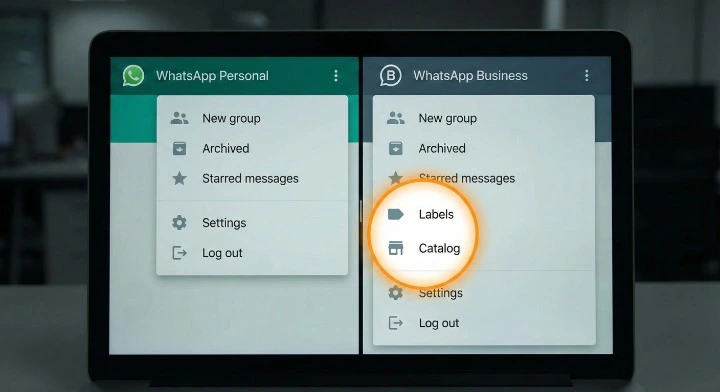
The personal WhatsApp Web is for chatting with friends and family. The web WhatsApp Business looks similar but includes powerful tools for companies.
When you log in with a business account, you get access to:
- Quick Replies: Pre-written messages for common questions.
- Labels: Tags to organize chats (e.g., "New Order," "Pending Payment").
- Catalog Access: The ability to send product listings to customers.
How to Log In to WhatsApp Business Web
Logging in is simple and takes less than a minute. You will need your smartphone and a computer with an internet connection.
Step 1: Accessing the Official Web Address
Open your internet browser on your computer. Type in web.whatsapp.com and press Enter. You will see a large QR code on the screen. This code is the key to connecting your phone to the computer.
Step 2: Navigating the Linked Devices Menu on Android and iOS
You must open the scanner on your phone to read the code on your computer screen.
- For Android Users: Open WhatsApp Business. Tap the three dots (More Options) in the top right corner. Select Linked devices. Then, tap the button that says Link a device.
- For iOS (iPhone) Users: Open WhatsApp Business. Tap on Settings in the bottom right corner. Select Linked Devices. Then, tap Link a Device.
Step 3: Scanning the QR Code Successfully
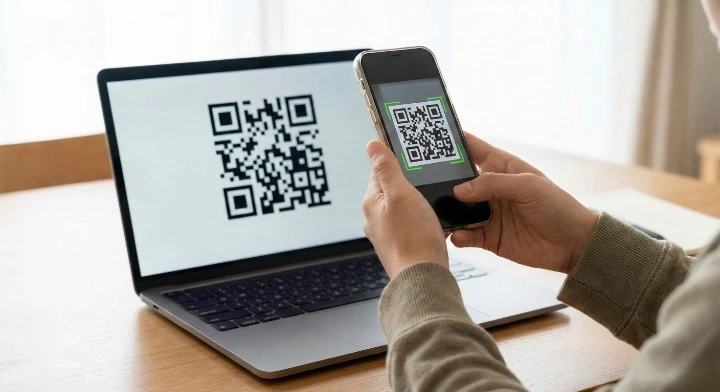
Point your phone camera at the computer screen. Make sure the QR code fits inside the box on your phone screen. The phone will vibrate or beep, and the screen on your computer will refresh. Within seconds, your web whatsapp business chat list will appear on the desktop.
Using Multi-Device Mode (No Phone Connection Required)
In the past, your phone always had to be connected to the internet for Web WhatsApp to work. If your phone battery died, the web connection would cut off. Now, WhatsApp uses a feature called Multi-Device Mode. Once you link your device, you can use web whatsapp business on your computer even if your phone is offline or switched off. You can link up to four additional devices (computers or tablets) to one phone account. This is great for small teams sharing one number.
WhatsApp Web Browser vs. WhatsApp Desktop App
You can use WhatsApp on a computer in two ways: through a web browser or by installing an app.
Features, Notifications, and Call Functionality
Here is how the two options compare to help you choose the best one.
| Feature | WhatsApp Web (Browser) | WhatsApp Desktop App (Installed) |
| Setup Speed | Very Fast (No install needed) | Slower (Must download and install) |
| Voice/Video Calls | Not always supported | Supported (More reliable) |
| Keyboard Shortcuts | Basic | Advanced |
| Notifications | Browser-dependent | System-integrated (Better) |
| Memory Usage | Uses browser memory | Independent app usage |
Why the Installed Desktop App Might Be Better for Heavy Users
If you send hundreds of messages a day, the installed Desktop App is usually better. It is more stable and handles notifications better. It also supports voice and video calls directly from the computer, which the browser version sometimes struggles with. If you accidentally close your browser tab often, the App is a safer choice because it stays open in the background.
Managing Web WhatsApp Business on Desktop
Using a mouse and keyboard unlocks the full potential of WhatsApp Business tools.
Using Quick Replies and Labels on the Big Screen
- Quick Replies save you from typing the same answer repeatedly. On the desktop, type the / (forward slash) key in the chat box. A list of your saved replies will pop up. Click the one you want and hit send.
- Labels help you track orders. You can right-click any chat in the list and select "Edit label." This lets you mark a customer as "Paid" or "Order Complete" without opening the chat on your phone.
Managing and Sharing Your Product Catalog via Web WhatsApp Business
You can view and share your products directly from the computer. Click the clip icon (attachment) and select the Catalog icon. You can select products to send to customers. This is much faster than finding photos on your phone gallery.
The Limitations: Broadcast Lists and Voice/Video Calls
While web whatsapp business is great, it has limits. You cannot currently create or edit Broadcast Lists on the web; you must do that on your phone. Also, while you can answer calls on the Desktop App, starting calls from the browser version is not always available or reliable.
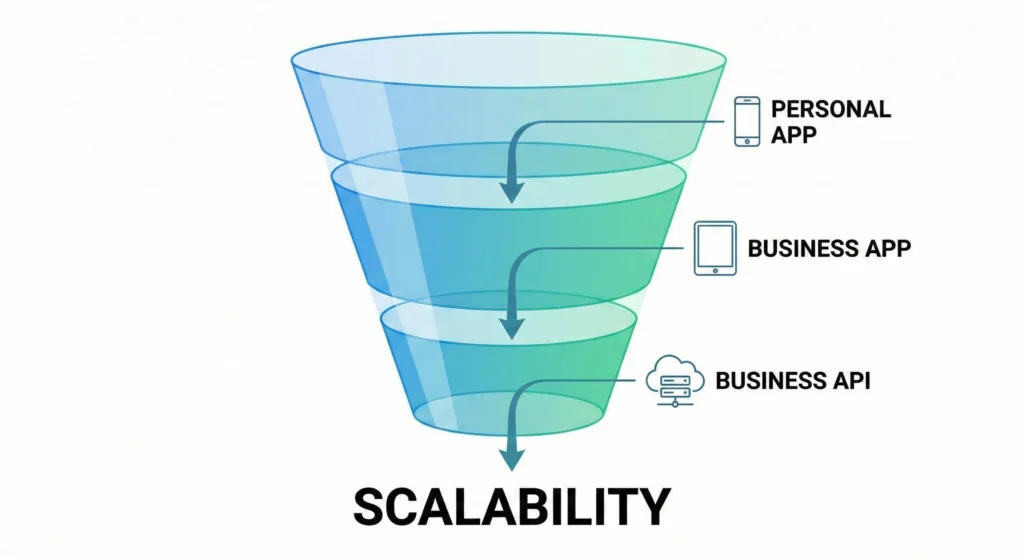
When to Move From App to API
For many growing companies, the standard app, even on desktop, eventually becomes too limited. If you have five or more support agents trying to use one number, you will face issues. The free app has a limit on linked devices.
If you hit these walls, you might need to upgrade. You can learn about the differences in our WhatsApp Business App vs API: Feature Comparison. The API allows for unlimited users and advanced automation, which the web interface does not support.
Solving Web WhatsApp Business Login and Sync Errors
Sometimes technology fails. Here is how to fix common problems.
What to Do When the QR Code Won't Scan
If your phone won't read the code:
- Increase Brightness: Turn up the brightness on your computer screen.
- Clean the Lens: Wipe your phone camera lens.
- Zoom: Press Ctrl and + on your keyboard to make the QR code larger on the screen.
Fixing 'Computer Not Connected' and Network Issues
If you see a yellow banner saying, "Computer not connected," check your computer's internet. If the banner says, "Phone not connected," open the app on your phone to refresh the link. If issues persist, log out and rescan the QR code.
Browser Compatibility: Why Chrome and Edge Matter
WhatsApp Web works best on Google Chrome or Microsoft Edge for web whatsapp business. Older browsers like Internet Explorer are not supported. Always keep your browser updated to the latest version to avoid syncing errors.
Enhancing Your Workflow
Once you are logged in, use these tricks to work faster.
Mastering Essential Keyboard Shortcuts
Stop reaching for the mouse. Use these keys to speed up:
- Ctrl + N: Start a new chat.
- Ctrl + Shift + ]: Next chat.
- Ctrl + Shift + [: Previous chat.
- Ctrl + E: Archive chat.
Using a Privacy Extension for WhatsApp Web
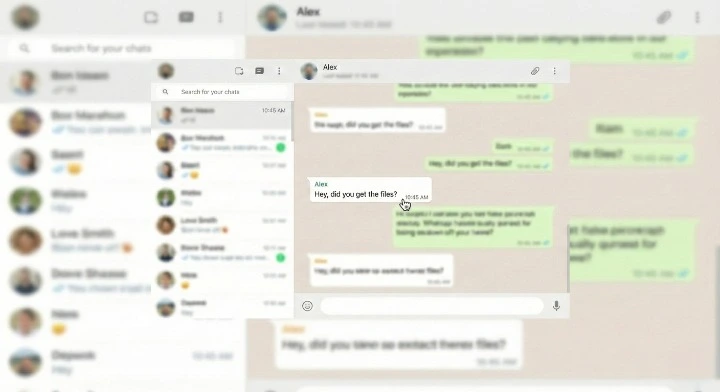
When using WhatsApp on a large monitor, people walking by might read your messages. This is a privacy risk. There are browser tools that can blur your messages until you hover over them.
For a safer workspace, you can install a Privacy Extension for WhatsApp Web. This adds a layer of security, especially in open offices.
Looking Beyond the Web Interface
Mastering the web interface is just step one. As you grow, you need to build authority.
The Impact of WhatsApp Verification on Business Trust
Customers trust brands that look official. A verified business account proves you are a legitimate company. This reduces the chance of customers blocking you. Understanding the Whatsapp Verification Business Impact is vital for long-term growth.
Planning for the WhatsApp Green Tick in 2026
The ultimate symbol of trust is the Green Tick next to your name. This is reserved for notable brands. Rules for this change often. If you want to secure your brand's future reputation, you should start planning now. Check out our Whatsapp Green Tick 2026 Guide to see what requirements are coming down the pipeline.
Mastering Web WhatsApp Business for Your Desktop Communication Strategy
- Web WhatsApp Business mirrors your phone, allowing for faster typing and better file sharing.
- Multi-Device Mode keeps you connected even if your phone battery dies.
- Use the Desktop App for better stability and calling features, or the Web Browser for quick access.
- Utilize Keyboard Shortcuts and Quick Replies to boost your productivity.
- If your team outgrows the web limits, consider upgrading to the WhatsApp Business API.