
WhatsApp Message Templates, Written and Approved
Every message your business starts on the WhatsApp Business API uses a template Meta has approved. Write them in a visual builder, preview them as the customer sees them, and submit without leaving Waplify.
Included on every plan. Nine adaptable examples below.
What is a WhatsApp message template?
A WhatsApp message template is a pre-written message that Meta has reviewed and approved, with placeholders for the details that change per person. Any message a business sends outside an open 24-hour conversation has to use one, which is the rule that keeps a business number in good standing.
-
Three categories
Marketing for offers and announcements, Utility for order and account updates, Authentication for one-time codes. The category you choose affects how Meta reviews it and what it costs.
-
Placeholders, not copy-paste
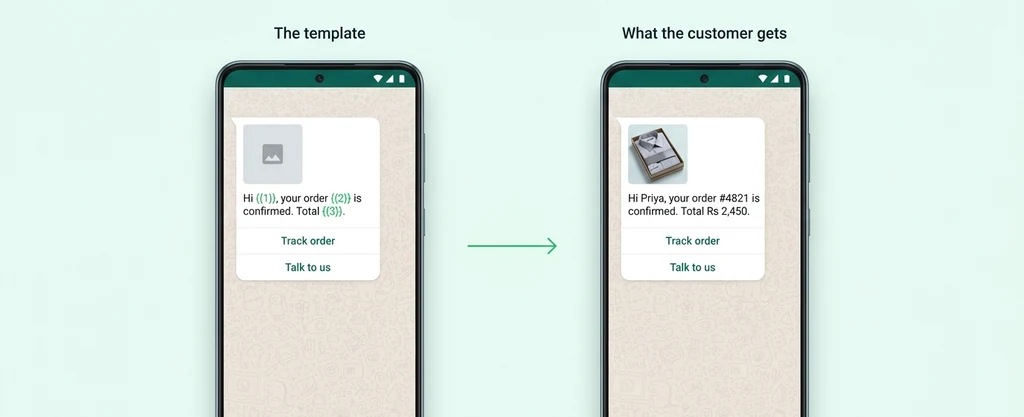
Variables written as {{1}}, {{2}} are filled per contact at send time from their name, order number or anything else on their record.
-
Approved before it can send
A template moves through pending, approved, rejected, paused or disabled. Only an approved one goes out, and the status comes back into Waplify on its own.
Templates are where most WhatsApp projects stall
The API is connected, the contacts are imported, and then nothing sends, because the first template came back rejected and nobody knows why.
-
Rejections with no explanation attached
A template comes back rejected and the reason sits in a different tool from the one you wrote it in. So the second attempt is a guess, and so is the third.
-
Nobody knows what already exists
Templates get written twice because there is no single list showing what is approved, what is pending and what was paused months ago.
-
Written blind, then discovered on the phone
Variables in the wrong order, a header that truncates, a button label that does not fit. All of it obvious in a preview and invisible in a text box.
A builder, a preview, and the real limits enforced
Everything that would otherwise come back as a rejection is checked while you type.
-
Every component Meta supports
An optional header as text, image, video, document or location. A body up to 1,024 characters. A footer up to 60. Up to 10 buttons, each labelled in 25 characters or fewer.
-
Six kinds of button
Quick reply, a link, a phone number, a copyable code, a one-time passcode, or a button that opens a WhatsApp Form. Quick-reply taps are the ones that come back in your reporting.
-
A live preview of the phone
The message renders as the customer will see it while you write, including the header media, the variables filled with sample values, and every button in place.
-
One list, always in sync
Submit from Waplify and the status comes back on its own. Templates you built on Meta's own site sync in too, so there is one list rather than two that disagree.
How to create a WhatsApp message template
Four steps, and only the last one involves waiting for Meta.
-
Pick the category
Marketing, Utility or Authentication. Choosing honestly is the single biggest factor in whether it is approved.
-
Write the message
Add a header if you need one, write the body, and place your variables where the per-contact details go.
-
Add the buttons
Quick replies to capture an answer, a link to send them somewhere, or a Form button to collect several details at once.
-
Submit and watch the status
Waplify sends it to Meta for review and updates the status when it comes back, with the rejection reason attached if there is one.
One template, four places it can send from
-
A broadcast campaign
Send an approved template to a whole group at once, with each person's variables filled from their contact record.
-
A drip sequence
Every step of a follow-up series is a template, which is what lets a sequence keep sending days after the conversation went quiet.
-
A chatbot flow
A flow can send a template to reopen a conversation, or carry a button that opens a form.
-
Your own system
Send a template over the REST API when something happens in your software, without anyone opening Waplify.
WhatsApp template questions, answered
Starting with the examples, because that is what most people came for.
1. What are some WhatsApp message template examples?
| Use | Category | Template text |
|---|---|---|
| Welcome | Marketing | Hi {{1}}, thanks for joining {{2}}. Reply here any time you need us. |
| Order confirmed | Utility | Order {{1}} is confirmed. Total {{2}}. We will let you know when it ships. |
| Out for delivery | Utility | Your order {{1}} is out for delivery today and should arrive by {{2}}. |
| Appointment reminder | Utility | Reminder: your appointment with {{1}} is tomorrow at {{2}}. Reply to reschedule. |
| Payment due | Utility | Invoice {{1}} for {{2}} is due on {{3}}. Tap below to pay. |
| Abandoned basket | Marketing | Hi {{1}}, you left {{2}} in your basket. It is still available today. |
| Offer | Marketing | {{1}}, our {{2}} sale is on until {{3}}. Use code {{4}} at checkout. |
| Feedback | Utility | How was your order, {{1}}? Tap a button below, it takes a second. |
| Verification code | Authentication | {{1}} is your verification code. Do not share it with anyone. |
2. What are the three WhatsApp template categories?
3. How do I add variables to a WhatsApp template?
4. What are the WhatsApp template character limits?
5. Why was my WhatsApp template rejected?
6. Can I edit a template after it is approved?
7. Do I need a template to reply to a customer?
8. Can a template open a form?
9. Where can I use an approved template?
10. How many templates can I create?
Get Lifetime Access to Waplify Today
Stop paying for monthly subscriptions. Automate your business forever with a one-time investment.