
WhatsApp automation no longer requires expensive developers or complex code. A no code WhatsApp webhook is a simple digital connector that instantly sends data from WhatsApp directly to your business apps, such as Google Sheets, CRMs, or email platforms. By using visual tools like Make or Zapier, you can set up this real-time link in minutes to automate replies, save customer contacts, and track orders without writing a single line of code.
Quick Answer: What is a No-Code WhatsApp Webhook?
A webhook is a way for one app to speak to another app automatically. In the past, you had to write computer programs to make this happen. Today, "no-code" platforms let you build these connections visually.
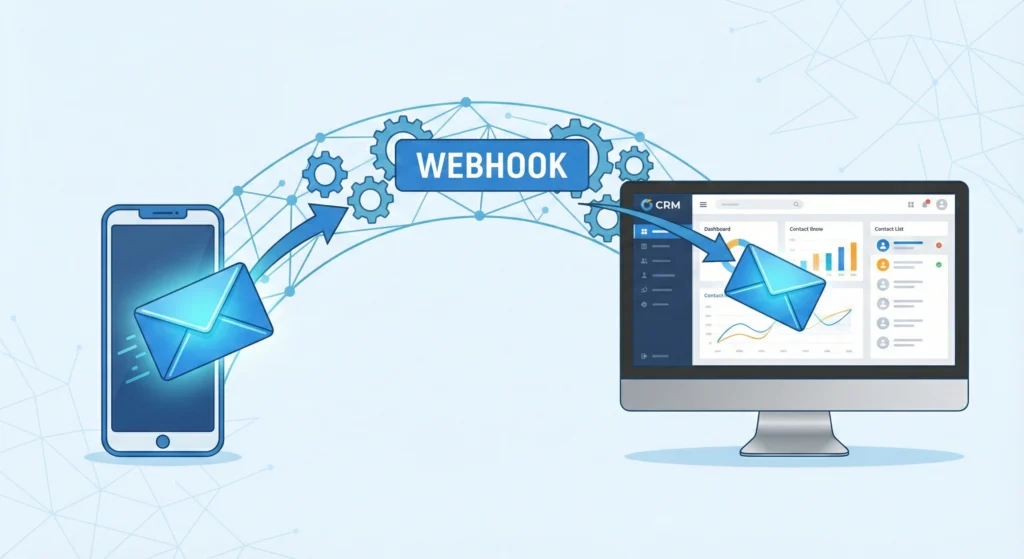
The 'Digital Courier' Analogy for Non-Techies
Think of a webhook as a digital courier. Without a webhook, you have to constantly check your phone to see if a customer sent a message. This is like walking to the mailbox every five minutes.
With a webhook, the courier (WhatsApp) grabs the message the moment it arrives. They run it immediately to your desk (your CRM or Spreadsheet) and drop it off. You don't have to check anything. The data arrives instantly.
Core Definition: Real-Time Data Bridges Without Servers
Technically, a webhook is a URL (a web link) that listens for incoming data. When a specific event happens, like receiving a new WhatsApp message, Meta sends a packet of data to that URL.
In a no-code setup, you do not need to buy or manage a server to host this URL. Your automation platform provides the URL for you. This creates a bridge that is always open, allowing data to flow in real-time.
Expert Analysis: No-Code vs. Custom Coding
Many businesses wonder if they should hire a developer or use a no-code tool. For most Small and Medium Businesses (SMBs), no-code is the smarter choice. It is faster, cheaper, and easier to fix if something changes.
Cost and Speed Comparison (Zapier/Make vs. Node.js)
Here is a breakdown of why no-code wins for speed and budget.
| Feature | No-Code (Make/Zapier) | Custom Coding (Node.js/Python) |
| Setup Time | 15 - 30 Minutes | 10 - 20 Hours |
| Initial Cost | $0 - $50 / month | $1,000+ (Developer fees) |
| Maintenance | Automatic updates | Manual server patching |
| Skill Level | Beginner / Logic-based | Expert / Programmer |
| Reliability | 99.9% Uptime (Platform managed) | Depends on your server quality |
Why SMBs Should Avoid Manual Server Maintenance
Running your own server is hard work. You have to worry about security updates, server crashes, and "downtime." If your server crashes at 2:00 AM, your WhatsApp bot stops working.
With no-code platforms, the provider handles the heavy lifting. They ensure the servers are running 24/7. This lets you focus on your business logic, not on fixing broken computers.
Prerequisites: The Essential Pre-Flight Checklist
Before you start building your automation, you need to have a few things ready. Having these items prepared will make the setup process smooth.
Securing WhatsApp Business API Access for SMBs
You cannot use standard WhatsApp or the Business App for advanced webhooks. You must use the WhatsApp Business API. This is the version of WhatsApp built for medium and large teams.
Getting access used to be hard, but now it is fast. You can get a phone number and API key through Meta or a Business Solution Provider (BSP). For a detailed look on how to get started quickly, check out this guide on WhatsApp Business API for SMBs 2026: Your Quick Start.
Selecting Your Visual Automation Tool
You need a "middleman" to receive the data. This is your no-code platform. Popular choices include:
- Make: Great for complex logic and cheaper pricing.
- Zapier: Very easy to use with thousands of integrations.
- n8n: A powerful option that is growing in popularity.
Select one, create an account, and log in.
The 7-Step No-Code Setup Guide
Follow these steps to connect WhatsApp to your automation tool. We will use a generic workflow that applies to most platforms like Make or Zapier.
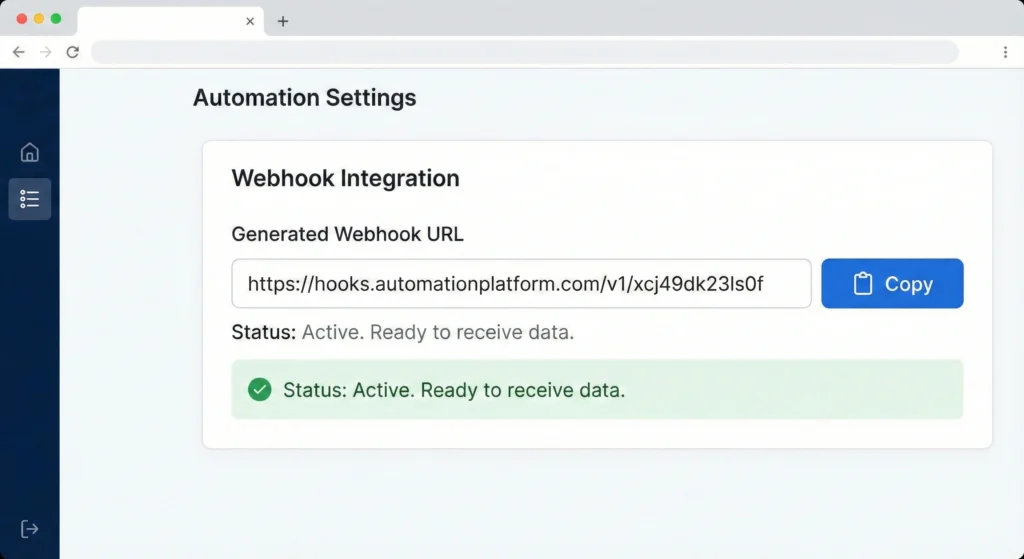
Step 1: Create a Catch Hook in Your Automation Platform
Open your automation tool and create a new scenario or "Zap."
- Search for the "Webhooks" module.
- Select "Custom Webhook" or "Catch Hook."
- Click "Add" and give it a name (e.g., "WhatsApp Receiver").
- The tool will generate a long URL (e.g., https://hook.us1.make.com/…). Copy this URL.
Step 2: Locate Webhook Settings in Meta or BSP Dashboard
Go to your WhatsApp Business API dashboard. If you are using Meta directly:
- Go to the Meta for Developers portal.
- Select your App.
- On the left menu, find "WhatsApp" and click "Configuration."
Step 3: Paste Your Callback URL and Verify Token
You will see a section for "Webhook." Click "Edit."
- Callback URL: Paste the URL you copied in Step 1.
- Verify Token: Create a random password (e.g., MySecretPass123). You type this in yourself.
- Do NOT click Save yet.
Step 4: The Handshake (Validating the Connection)
Meta needs to know your URL is real.
- Go back to your Automation Platform (Step 1).
- Set your Webhook module to determine the response. (Note: Some platforms handle
the "Verify Token" challenge automatically, while others require you to map thehub.challengevalue back to Meta). - Once your automation tool is listening, go back to Meta and click "Verify and Save."
- If successful, the box will close. Your "handshake" is complete.
Step 5: Subscribing to 'messages' and 'message_status' Events
Now you must tell Meta what data you want.
- Look for "Webhook Fields" or "Event Subscriptions."
- Click "Manage."
- Check the box for
messages(incoming texts). - Check the box for
message_status(read receipts). - Click "Subscribe."
Step 6: Triggering the First Test Payload
Your bridge is built. Now you need to test it.
- Set your Automation tool to "Run Once" or "Listen for Data."
- Send a WhatsApp message from your personal phone to your Business API number. Say "Hello World."
- Watch your Automation screen. You should see a success bubble pop up instantly.
Step 7: Mapping Data Variables to Your CRM or Sheet
Click on the success bubble to open the data. You will see a lot of text (JSON).
- Add a new module (e.g., Google Sheets "Add a Row").
- In the "Phone Number" field, drag the wa_id or from value from the webhook data.
- In the "Message" field, drag the body or text value.
- Save your scenario and turn it ON.
Data Breakdown: Understanding the JSON Payload
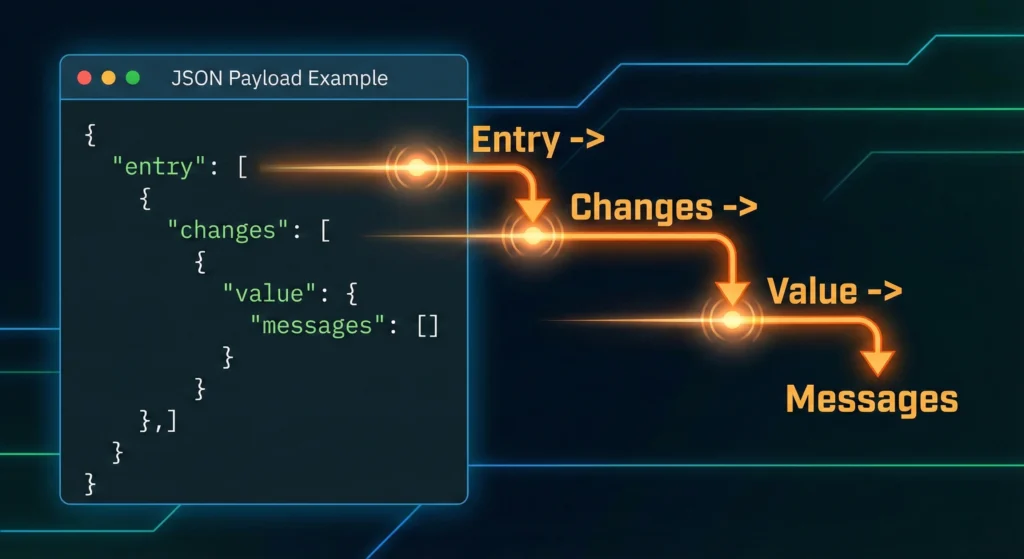
When WhatsApp sends data, it arrives in a format called JSON. It looks like a complex list, but it is organized.
Visual Guide: Anatomy of a WhatsApp Message Object
The data is nested like a set of Russian dolls.
- Entry: The main container.
- Changes: The update that just happened.
- Value: The actual details of the message.
- Messages: The specific text sent by the user.
Key Fields to Watch: From, Body, and Timestamp
You only need to worry about three main fields for most automations:
- From: This is the customer's phone number. It usually looks like 15550123456.
- Body: This is the text message content (e.g., "I want to buy a pizza").
- Timestamp: The exact time the message was sent.
Strategic Applications: Turning Webhooks into Revenue
Now that your data is flowing, what can you do with it? Webhooks allow you to build powerful systems.
Building 24/7 WhatsApp Chatbot Support Flows
You can connect your webhook to an AI service like OpenAI or a logic builder. When a message arrives, the system checks for keywords like "Help" or "Pricing" and sends an automatic reply. This provides instant service, even while you sleep. Learn more about setting up 24/7 WhatsApp Chatbot Support to keep your customers happy around the clock.
Automating WhatsApp Drip Campaigns via Webhooks
You can use webhooks to add new leads to a marketing sequence. If a user messages "Subscribe," the webhook adds them to a list that sends a message on Day 1, Day 3, and Day 7. For a deep dive into this strategy, read our WhatsApp Drip Campaigns: Setup, Strategy & Success Guide.
Exploring 50+ Real-World Automation Use Cases
The possibilities are endless. You can automate order confirmations, appointment reminders, or lead qualification. If you need inspiration, check out our list of 50 WhatsApp Automation Use Cases & Examples.
Future-Proofing: WhatsApp Business API Integrations for 2026
Technology moves fast. By using webhooks, you prepare your business for the future. As AI gets better, your webhook setup will easily connect to new tools without rebuilding your entire system. Stay ahead of the curve by reading about WhatsApp Business Api Integrations 2026 Automation.
Troubleshooting Common Configuration Errors
Sometimes things don't work on the first try. Here are two common issues.
Fixing 'Verify Token Mismatch' Errors
If Meta says your token is wrong during Step 3:
- Check that the token you typed in Meta matches exactly what is in your automation tool settings.
- Ensure there are no extra spaces at the beginning or end.
- Make sure your automation scenario is actively "running" or listening when you click Verify.
Handling Deduplication and Retries
Sometimes Meta sends the same message twice to ensure you got it. This is called a "retry." To stop your bot from replying twice:
- Look at the id field in the message payload.
- Save this ID to a database or spreadsheet.
- Before sending a reply, check if that ID already exists in your list. If it does, ignore it.
Conclusion: Scaling Communications Effortlessly
Setting up a WhatsApp webhook using no-code tools is a game-changer for SMBs. It transforms WhatsApp from a simple chat app into a powerful business engine. By following these 7 steps, you have removed the need for manual data entry and created a system that scales with your growth. You can now handle 100 or 10,000 messages with the same amount of effort.