
Send WhatsApp messages straight from Google Sheets
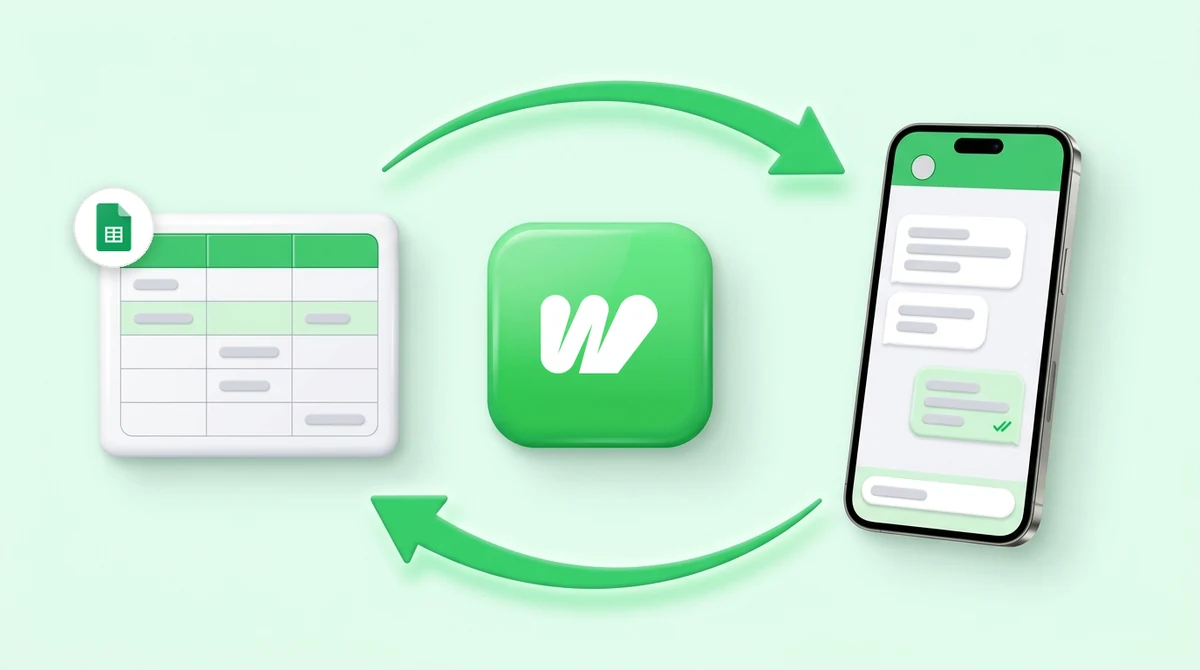
Add a row, or let a form, an ad campaign or Zapier add it for you, and Waplify sends the message. It runs the other way too: a flow can look a customer up in your sheet mid-chat and write the answer back.
Included in every plan · One-click template sheet, no code to paste
The rows arrive. The messages do not.
Leads land in a sheet from a form, an ad, or an import, and then wait for a human to notice them and open WhatsApp.
-
Rows pile up unanswered
A campaign fills the sheet overnight. Nobody messages anyone until somebody opens the tab in the morning.
-
Copy the number, open WhatsApp, repeat
The manual loop is one row at a time, and it is where numbers get mistyped and rows get skipped.
-
The sheet never learns what happened
Even when the message does go out, nothing writes back, so you cannot tell which rows were handled.
It works in both directions
A row can start a conversation, and a conversation can update a row. Same sheet, same flow.
-
A new row sends the message
Add or change a row and the add-on posts it to your flow, which sends the WhatsApp message. No button to press.
-
Rows your other tools write, too
Google Forms, ad platforms, Zapier and API writes do not fire a normal edit event, so Waplify also polls the sheet every minute and picks them up.
-
Only the rows that matter
Watch one specific column, and add conditions: equals, contains, at least, at most, or simply filled in. Everything else is left alone.
-
Never the same row twice
A “Waplify Sent” column is stamped once the flow actually starts. Rows that failed setup stay open and retry rather than being silently marked done.
-
Every column becomes a variable
Name, order ID, appointment time, status: each column arrives in the flow, ready to drop into the message.
-
And your flows write back
Mid-conversation a flow can add a row, find one, find several, or update the row it just found, then branch on the result.
Copy one sheet, paste two values
There is no code to write. The template arrives with the add-on already inside it, and the whole setup happens in a sidebar.
-
Make a copy of the template
One click gives you your own sheet with the ⚡ Waplify menu already in it. Nothing to install or paste.
-
Add a Webhook trigger to a flow
In Waplify, open your flow, set the Start block to Webhook, and copy the URL it gives you.
-
Paste it into Settings
Drop the URL and an API key into the sidebar, choose your tab and your phone column, and add any conditions.
-
Turn it on
Send a test to confirm the fields arrived, then leave it running. New and changed rows send on their own.
Anywhere a spreadsheet is already the system of record
The sheet stays where it is. The messaging stops depending on somebody remembering.
-
Lead sheets fed by ads and forms
A Meta or Google lead form drops a row, the poll catches it within the minute, and the enquiry gets an answer while it is still warm.
-
Order and delivery status
Change a status cell to dispatched and the customer hears about it, because the watch column is pointed at exactly that field.
-
Teams with no CRM
The spreadsheet stays the system of record. Waplify handles the conversation and writes the outcome back into the row.
What it does, and where the limits are
Including the question this page used to answer incorrectly.
1. Can I send WhatsApp messages from a Google Sheet?
2. What if the row is added by a form, an ad, or Zapier?
3. Is this a bulk WhatsApp sender?
4. Could it message the same person twice?
5. Can I send only when a certain cell changes?
6. Can a flow read and update the sheet as well?
7. Do I need a developer?
8. Which plan do I need?
Get Lifetime Access to Waplify Today
Stop paying for monthly subscriptions. Automate your business forever with a one-time investment.